Not everyone loves being on camera—and that’s completely okay. Whether you feel shy recording yourself, don’t have the right filming setup, or simply prefer staying behind the scenes, CapCut Text to Speech AI offers the perfect solution. This powerful feature, available on CapCut PC, can turn your written script into clear, expressive audio in just seconds. For creators who want to publish high-quality content without recording their voice or showing their face, this AI tool opens the door to endless possibilities.
From YouTube tutorials and TikTok reels to explainer videos and educational content, CapCut’s Text to Speech AI helps you deliver your message confidently and professionally. Instead of worrying about microphones, background noise, or multiple retakes, you can simply type, convert, and add natural-sounding narration to your project. Plus, the wide selection of voices—from friendly conversational tones to strong narration styles—makes it easy to match the mood of your video.
Why CapCut Text to Speech AI Is a Game-Changer for Camera-Shy Creators
1. No More Stress About Recording Your Voice
If you dislike hearing your own voice or get nervous speaking aloud, Text to Speech AI is your best friend. Just write your script, click a button, and enjoy smooth, natural narration. You can adjust tone, speed, and clarity to match the personality of your content.
2. Perfect for Personal Branding Without Showing Your Face
Some creators prefer privacy. Others simply want the focus to be on information rather than appearance. CapCut Text to Speech allows you to maintain a consistent “voice” across all your posts—even if you never appear on screen.
3. Save Time With Fast, Professional Voiceovers
Recording voiceovers can take hours, especially when interrupted by noise or mistakes. CapCut’s AI converts text into an audio track in seconds. This is ideal for busy creators who want to publish frequently without compromising quality.
4. Great for Tutorials, Product Demos, and Educational Content
When your content is educational or instructional, clarity is important. CapCut Text to Speech provides crisp, clear narration that enhances understanding. This makes your videos more viewer-friendly and increases watch time.
5. Easy to Edit and Update
If you ever need to update a sentence, fix an error, or warm up your message, you don’t have to re-record anything. Simply edit the text and regenerate the audio—your video stays perfectly synced and polished. Try CapCut AI tools such as AI Avatar, AI Video Maker, and more to polish your video.
How to Use CapCut Text to Speech AI (Perfect for Camera-Shy Creators)
Step 1: Upload your video
Download and install CapCut desktop video editor. Click “Create project” to open a new timeline and begin editing. Next, choose “Import” to add your video clips, images, or screen recordings into the media library. Drag them onto the timeline to prepare for adding your Text to Speech voiceover. This setup process is quick and straightforward, making it easy for both beginners and experienced editors to get started. Once your visuals are placed in order, you’re ready to add narration that brings everything together.
Step 2: Use the Text to Speech Tool
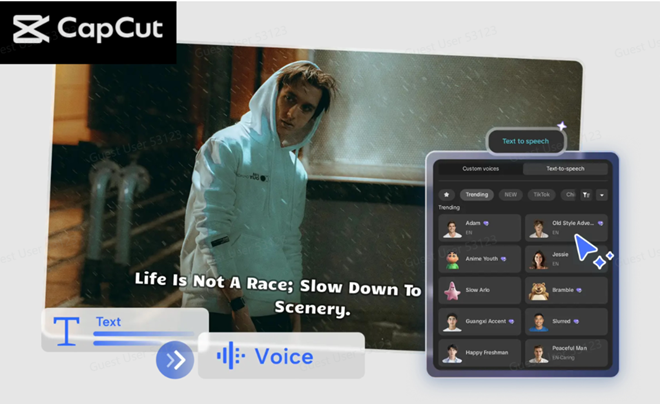
In the left-hand toolbar, select “Text” and then click “Text to Speech.” A text box will appear where you can type or paste your script. After entering your content, explore the voice selection menu. CapCut offers a variety of options, including:
- Conversational male and female voices
- Energetic influencer-style tones
- Calm narration voices
- Character or playful voices for fun content
After choosing a voice that matches your video’s style, click “Generate” to create your AI narration. CapCut’s Text to Speech AI will instantly convert your script into a clear and natural-sounding audio clip. You can drag the audio to perfectly align it with your visuals, adjust the volume, or regenerate it to get a different tone. On the right-hand panel, you can also modify pitch, speed, and emphasis to make the voiceover sound more expressive or relaxed—whatever your content requires. This tool is incredibly simple to use and gives you full control without needing recording equipment or vocal skills. Within seconds, your video now has polished narration that boosts professionalism and viewer engagement.
Step 3: Export and share
Once you’re satisfied with your video and AI voiceover, head to the “Export” section located at the top-right corner. Here, you can fine-tune export settings, including resolution, quality, and format. For social media platforms like YouTube, TikTok, Instagram, and Facebook, CapCut offers recommended export presets to maintain clarity and smooth playback. Your polished, voice-narrated content is now ready to reach your audience. Whether you’re posting tutorials, motivational videos, business explainers, or faceless reels, CapCut’s Text to Speech feature makes the entire process effortless.
Conclusion
CapCut Text to Speech AI is a powerful and accessible tool for anyone who prefers staying off-camera or wants an easier way to create high-quality narrated videos. With natural voices, customizable tones, and an intuitive interface, CapCut PC gives every creator the confidence to publish content that sounds professional—without recording a single word. If you’re camera-shy, short on time, or simply want a cleaner workflow, this feature helps you bring your ideas to life faster and with fewer limitations. Just type, generate, and create.